
DATA ENTRY AND KEYBOARDING SKILLS
1. Introduction to Keyboarding Skills
- Keyboarding skills and typing ergonomics are crucial for enhancing operational efficiency with computers today.
- Mastering these skills and achieving high speeds requires consistent effort and a controlled environment.
- Keying data quickly and accurately becomes easier with these skills.
2. Keyboard Basics
- The keyboard is the most common text-based input device.
- Computer keyboards are similar to electronic typewriters but have more than 100 keys.
- Each key corresponds to a symbol, and some actions or commands require pressing multiple keys simultaneously or in sequence.
3. Touch Method of Typewriting (Touch Typing)
- Touch typing is a method of typing without looking at the keys.
- A touch typist knows key locations through muscle memory.
- It typically involves placing the eight fingers on the home row (middle of the keyboard).
- Fingers are trained to move to other keys and return immediately to their home key after striking.
- The “F” and “J” keys are guide keys, having small raised marks to help typists position fingers correctly without looking.
- Touch typing improves speed and accuracy, as the typist focuses on the text rather than finding keys.
- The process of learning touch typing begins with the Home Row, followed by the lower, upper, and number rows, uppercase letters, and special symbols.
- Later stages involve memorizing syllables and typing actual text.
- Key rules include: returning fingers to the base position after each keystroke, using color-coding to guide which finger presses which key, and using the thumb for the Space key.
4. Typing Speed Improvement
- Typing speed generally improves with practice.
- Speeds of 60 WPM (words per minute) or higher can be achieved.
- Many free websites and software products (e.g., Rapid Typing Tutor) are available for learning touch typing efficiently.
5. Types of Keys on a Computer Keyboard
Keyboards contain various types of keys:
- Alphanumeric keys: All alphabet (A-Z) and numbers (0-9).
- Punctuation keys: For symbols like comma, period, semicolon, brackets, and mathematical operators (+, -, =).
- Alt key (Alternate): Functionns like a second control key.
- Arrow keys (↑, ↓, →, ←): Used to move the cursor. Can be combined with Shift or Alt keys.
- Backspace key: Deletes the character to the left of the cursor and moves the cursor to that position.
- Caps Lock key: A toggle key that makes all alphabetic characters uppercase when activated. A light on the keyboard indicates it’s on.
- Ctrl key (Control): Used with other keys to produce control characters, whose meaning depends on the running program.
- Delete key (Del): Deletes the character at the current cursor position or selected object, but doesn’t move the cursor.
- Enter key or Return key: Used to enter commands or move the cursor to the beginning of the next line.
- Esc key (Escape): Used to send special codes to devices and exit programs or tasks.
- Function keys (F1 to F12): Special keys with meanings that vary depending on the program.
6. Numeric Keypad
- Used for enormous numeric data entry.
- Located on the right-hand side of the keyboard, similar to a calculator.
- Contains numbers (0-9), mathematical symbols (+, -, *, /), a decimal point, Num Lock, and Enter keys.
- Can work in dual mode (numbers vs. arrow keys, page up/down) controlled by NumLock.
- On a numeric keypad, number 5 is the guide key, featuring a small raised mark.
7. Finger Positioning and Practice
- Home keys: ASDF for the left hand and ;LKJ for the right hand. Fingers return here after striking other keys.
- Guide keys: ‘F’ and ‘J’ on the main keyboard, and ‘5’ on the numeric keypad, have raised marks for tactile finger placement.
- The right-hand thumb operates the Space Bar.
- Learning progression involves mastering the Home Row, then the Third Row (Upper Row), First Row (Bottom Row), and Fourth Row (Number Row).
- Specific finger allocations for each row are detailed, e.g., ‘g’ and ‘h’ are typed by the forefingers on the Home Row.
- In the First (Bottom) Row, the left hand’s little finger is not used.
- Practice involves not looking at the keyboard, maintaining constant rhythm, and focusing on accuracy.
8. Basic Text Operations
- Typing text: Click on keyboard letters.
- Deleting text: Use Backspace (to the left of cursor) or Delete key (at cursor position/to the right).
- Typing numbers: Use the numeric keypad or the numbers on the second row of keys.
- Typing capital letters: Press Caps Lock ON, type, then tap Caps Lock OFF.
- Typing symbols: Press and hold the Shift key (two on keyboard) and then the key with the required symbol.
- Spaces between words: Press the space bar once.
- New lines/paragraphs: Use the Enter or Return key.
9. Pointing Devices (Mouse)
- Pointing devices allow selecting items on the screen (e.g., buttons, menus, windows) and drawing. Examples include mouse, joystick, light pen, touchpad, trackball, touchscreen.
- A mouse has buttons, a handling area, and a rolling object.
- Default configuration is for the right hand, but settings can be changed for left-handed users.
- Correct holding: Index finger on left button, middle finger on right button, held with thumb and ring finger.
- Mouse pointer changes shape depending on its function (e.g., arrow, I-beam for text, pointing finger for hyperlinks).
- Common mouse actions:
- Click (Left click): Selects an item (press and release left button once).
- Double click: Starts a program, opens a file, or triggers an action.
- Right click: Displays a set of commands and options.
- Drag and drop: Selects and moves an item from one location to another (hold left button, drag, then release).
- Scroll: Moves the page up or down using the scroll wheel or scroll bar.
- Blocking: Selects text for editing/formatting by clicking, holding the left button, and dragging to highlight.
10. Typing Ergonomics
- Ergonomics provides logistic support for efficient and effective typewriting, maintaining accuracy and speed.
- Sitting posture: Sit straight, slightly bending neck forward, lower back touching chair’s backrest, both feet on the floor.
- Position of hands: Forearms level with keyboard, palms down, wrists straight, elbows bent at 90 degrees.
- Monitor placement: Upper border of screen at eye level, distance of 60-65 cm for 17-inch screen.
- Mouse and keyboard placement: Keep together, approximately 20 cm apart, at the same height as elbows.
- Chair and table placement: Adjust to optimal height, chair supportive to lower back, separate tables for keyboard/vibrating devices, sufficient leg space.
- Placement of matter: Place matter to be typed to the left or right of the keyboard, preferably on a sloping Copy Holder.
11. Typing Software (Rapid Typing Tutor Example)
- Rapid Typing Tutor is a Free and Open Source Software (FOSS) for learning typing skills, often includes a typing game.
- Its interface includes a Taskbar (for layout, level, lesson, background settings), horizontal/vertical buttons (Options, About, Help; Lesson, Statistics, Lesson Editor), a Text panel, a Lesson control panel (pause/resume, sound), and a virtual Keyboard.
- Users select keyboard layout, level (Introduction, Beginner), lesson category, and specific lesson.
- Progress bars (green for completion, yellow for rhythm) indicate performance.
- Results dialog shows overall skill, WPM, CPM, and accuracy.
- Color coding in results:
- Green: Right inputs.
- Yellow: Right inputs exceeding acceptable timeframe.
- Red: Wrong inputs within acceptable timeframe.
- Orange: Wrong inputs exceeding acceptable timeframe (worst).
- An Error tab provides detailed statistics on errors and delays per letter.
- Statistics section allows reviewing overall progress (CPM, WPM, accuracy) graphically and in tables, filterable by layout, level, and course.
- Lesson Editor allows full customization of lessons (add, insert, change, delete text, group in courses, review metrics).
12. Calculating Typing Speed and Accuracy
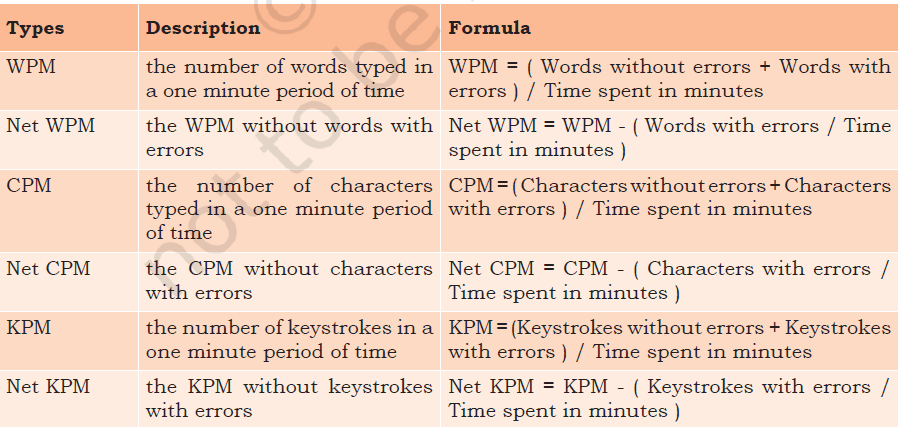
- Typing accuracy is the percentage of correct entries out of total entries.
- Accuracy (words/characters/keystrokes) % = (100% – Errors * 100%) / Total.
- Errors % (words/characters/keystrokes) = Errors * 100% / Total.
- Typing rhythm means keystrokes at equal intervals. The Slowdown indicator helps control constant typing speed.
- Overall rating is calculated as (Net speed / Course goal: Speed) * 100%.
13. Typing Speed Benchmarks
- An average professional typist typically types between 50 to 80 WPM.
- Some positions require 80 to 95 WPM, and advanced typists can exceed 120 WPM.
- Historical records include Stella Pajunas (216 WPM in 1946) and Barbara Blackburn (150 WPM for 50 minutes using Dvorak keyboard, top speed 212 WPM).