
introduction to operating system
CHAPTER 2
INTRODUCTION TO OPERATING SYSTEM
Question & Answer
Answers – MS Windows 7
Q1. Multiple Choice Questions
(a) ______ runs on computer hardware and serves as a platform for other software to run on.
Answer: (i) Operating system
(b) ______ transforms one interface into another interface.
Answer: (ii) Software
(c) The text editor is the part of Windows operating system.
Answer: (ii) Notepad
(d) What are icons?
Answer: (iii) Picture
(e) Start button of Windows 7 is available in ______.
Answer: (ii) Task Bar
(f) MS-Windows is ______.
Answer: (i) An operating system
(g) Windows ______ is the newest version of the Windows operating system.
Answer: (iv) 10
(h) ______ is a popular program available with Windows 7 that allows you to create and edit simple graphics.
Answer: (iv) Paint
Q2. Fill in the Blanks
(a) Icons are small pictures that represent files, folders, programs, and other items.
(b) Recycle Bin is a dustbin on your computer.
(c) Windows is a most popular OS.
(d) Windows XP/7/8/10 is an example of Windows OS.
(e) Operating System (OS) acts as a bridge between the user and the computer.
(f) Clock is an example of a gadget.
Q3. Short Questions
1. What is OS? Give an example.
OS (Operating System) is system software that acts as a bridge between the user and the computer hardware.
Example: Microsoft Windows.
2. What is a desktop?
A desktop is the main screen that appears after a computer starts. It contains icons, the taskbar, gadgets, etc.
3. What are gadgets?
Gadgets are small programs that display useful information on the desktop.
Examples: Clock, Calendar and Weather.
4. What is Windows Explorer?
Windows Explorer is a program used to view and manage files and folders on a computer.
5. What are folders?
Folders are used to store and organize files and other folders.
6. What is a window?
A window is a rectangular area on the screen in which a program, file or folder is displayed.
7. What is an icon?
An icon is a small picture that represents a file, folder, program or other item.
8. Difference between GUI and CUI
| GUI | CUI |
| GUI stands for Graphical User Interface. | CUI stands for Character User Interface. |
| It uses pictures, icons and menus. | It uses text commands. |
| It is easy to use. | It requires knowledge of commands. |
| Example: Windows. | Example: DOS. |
Q4. Solve the Jumbled Letters
(a) ETGADG → GADGET
(b) NICO → ICON
(c) SWODNIW → WINDOWS
(d) OFDLRE → FOLDER
(e) TOPKSED → DESKTOP
Q5. Long Questions
(a) Describe the different components of MS-Windows 7.
The main components of the Windows 7 desktop are:
- Desktop – The main screen that appears after Windows starts.
- Icons – Small pictures representing files, folders and programs.
- Gadgets – Small programs that display useful information such as time and weather.
- Taskbar – The bar usually present at the bottom of the desktop. It contains the Start button and buttons for running programs.
- Start Button – Used to open programs, search files and access various Windows features.
- Notification Area – Shows notifications and small icons such as volume, network and date/time.
- Recycle Bin – Stores deleted files temporarily.
(b) Explain the different components of Gadgets in Windows 7.
Windows 7 provides small programs called gadgets that can be placed on the desktop. They provide useful information quickly.
Some common gadgets are:
- Clock Gadget – Displays the current time.
- Calendar Gadget – Displays dates and helps us view the calendar.
- Weather Gadget – Shows weather information.
- CPU Meter Gadget – Shows the usage of the computer’s processor and memory.
- Slide Show Gadget – Displays pictures as a slide show.
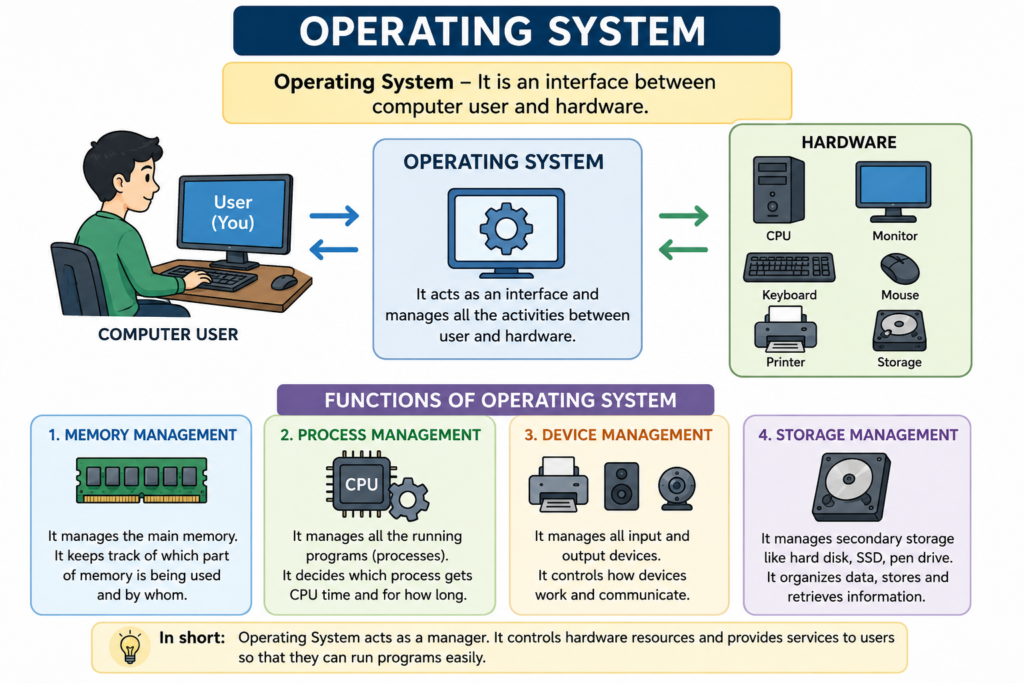
(c) What is an Operating System? Write its functions.
An Operating System (OS) is system software that acts as a bridge between the user and the computer hardware. It also provides a platform for other programs to run.
Functions of an Operating System:
- Memory Management – Manages the computer’s memory.
- Process Management – Manages programs and processes running on the computer.
- Device Management – Controls devices such as keyboard, mouse, printer and monitor.
- Storage Management – Manages files, folders and storage devices.
- User Interface – Provides a way for users to communicate with the computer.
Examples: Windows, Linux, macOS.